Password-protecting a directory helps you secure sensitive files, restrict access to private areas, and add an extra layer of security to your website. DirectAdmin makes this easy without coding.
Follow the steps below
Step 1: Log in to DirectAdmin
Access your Direct Admin control panel using your hosting username and password.
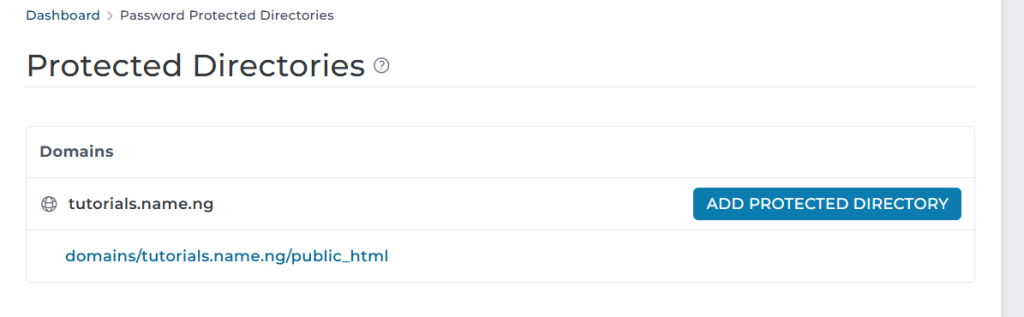
Step 2: Go to “Password Protected Directories”
On the main dashboard:
Click Advanced Features Select Password Protected Directories
Step 3: Choose Your Domain
If you have multiple domains, select the domain where the directory is located.
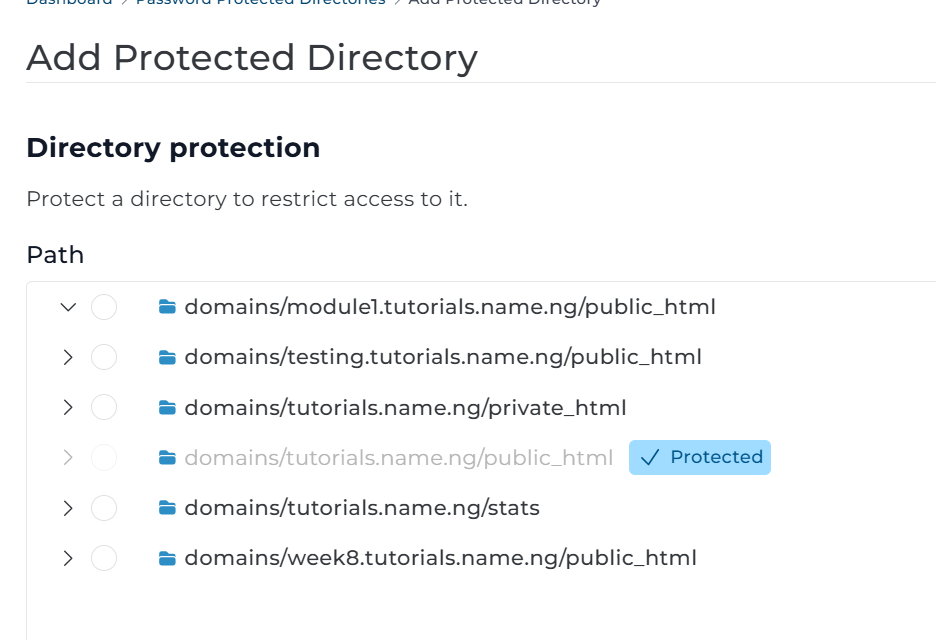
Step 4: Select or Create the Directory
Choose an existing directory you want to protect OR
Create a new directory and select it
Example directories:
/admin
/private
/members
Step 5: Enable Password Protection
Check Enable Password Protection
Enter a Protected Directory Name (this will appear on the login prompt)
Click Save.
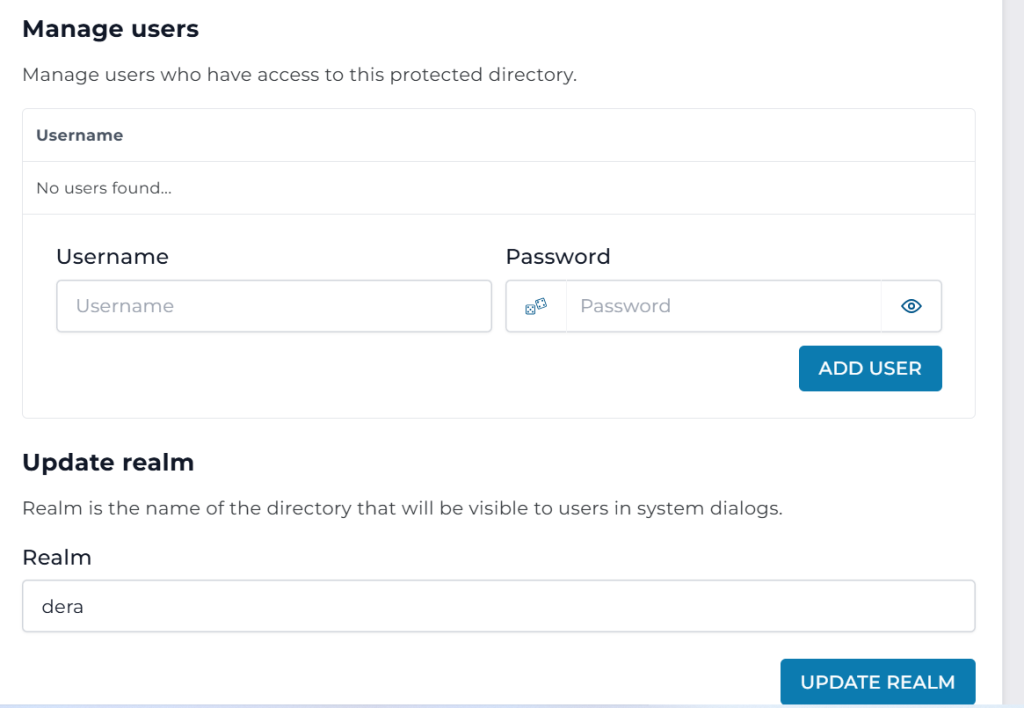
Step 6: Create a Username and Password
After enabling protection:
Click Add User
Enter:
Username
Password
Click Save
You can create multiple users if needed.
Step 7: Test the Protected Directory
Open your browser and visit:
https://yourdomain.com/protected-directory
A login box will appear. Enter the username and password you created.
Why Use Password-Protected Directories?
Protect admin or staging areas
Restrict client-only content
Secure unfinished websites
Add extra security beyond login pages
Important Tips
Use strong passwords for all users
Remove users you no longer need
Avoid protecting core WordPress folders like /wp-admin unless necessary
Always use HTTPS for better security
Summary
To create a password-protected directory in DirectAdmin:
Log in
Go to Advanced Features → Password Protected Directories