
Two-Step Authentication (also called 2FA) adds an extra layer of security to your DirectAdmin account. Even if someone knows your password, they won’t be able to log in without a second verification code.
What Is Two-Step Authentication?
Two-Step Authentication requires:
Something you know – your password
Something you have – a one-time code generated on your phone
This greatly reduces the risk of unauthorized access.
Step 1: Log in to DirectAdmin
Access your DirectAdmin control panel using your normal username and password.
Step 2: Go to “Two-Step Authentication”
From the main dashboard:
Click Advanced Features
Select Two-Step Authentication
Step 3: Enable Two-Step Authentication
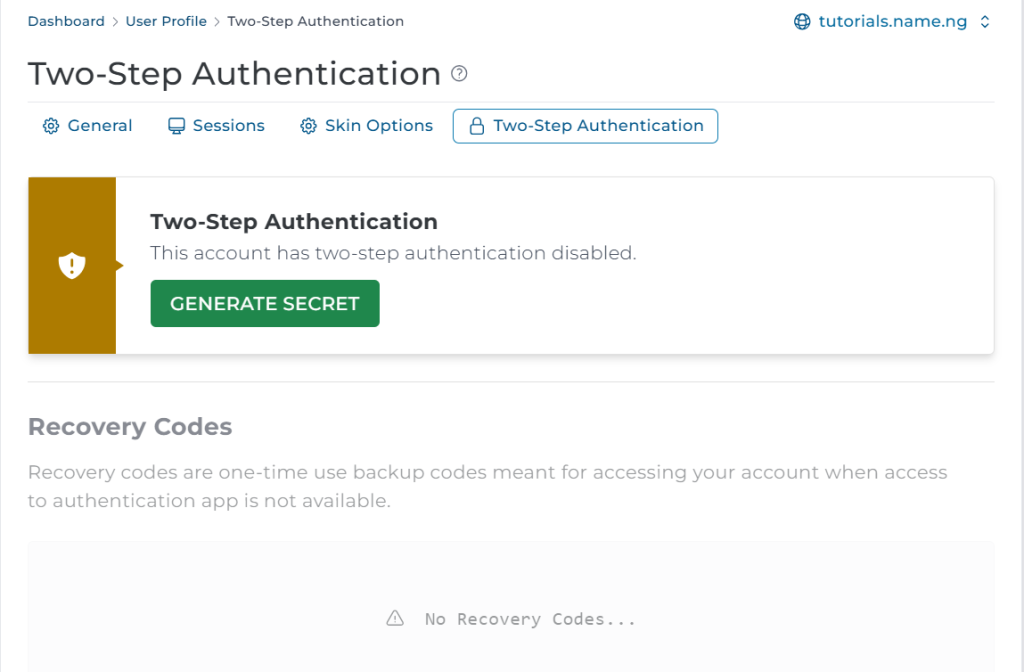
On the Two-Step Authentication page:
Click Enable/generate secret
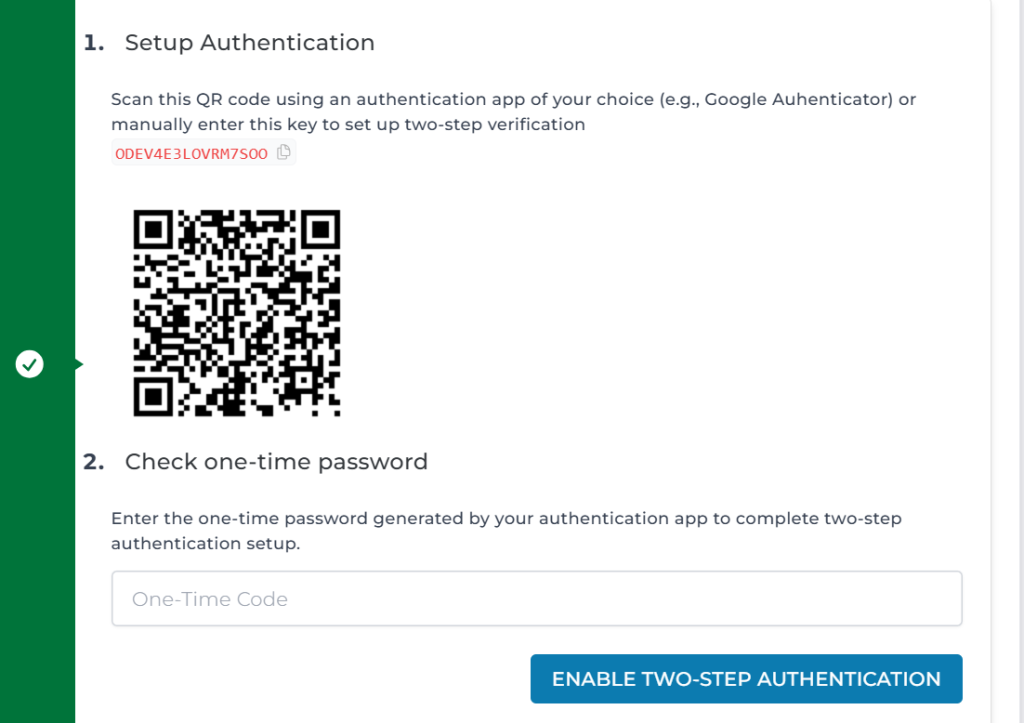
DirectAdmin will display a QR code and a secret key
Step 4: Install an Authenticator App
On your mobile phone, install any of these apps:
Google Authenticator
Microsoft Authenticator
Authy
These apps generate time-based one-time passwords (TOTP).
Step 5: Scan the QR Code
Open your authenticator app
Tap Add Account
Scan the QR code shown in DirectAdmin
The app will start generating 6-digit codes.
Step 6: Verify and Activate
Enter the 6-digit code from your app into DirectAdmin
Click Confirm / Activate
Two-Step Authentication is now enabled.
Step 7: Save Your Backup Codes
DirectAdmin may provide recovery or backup codes.
⚠️ Save these codes securely.
They help you regain access if you lose your phone.
How Login Works After Enabling 2FA
Each time you log in:
Enter your username and password
Enter the 6-digit code from your authenticator app
Access is granted only if both are correct.
How to Disable or Reset 2FA
To disable or reset Two-Step Authentication:
Log in to DirectAdmin
Go to Advanced Features → Two-Step Authentication
Choose Disable or Reset
(Contact your hosting provider if you are locked out.)
Why You Should Use Two-Step Authentication
✔ Protects against hacking
✔ Prevents unauthorized access
✔ Secures hosting, emails, and websites
✔ Recommended for all admin accounts
Summary
To enable Two-Step Authentication in DirectAdmin:
Log in
Go to Advanced Features → Two-Step Authentication
Enable 2FA
Scan QR code with authenticator app
Enter verification code
Save backup codes
Simple, secure, and highly recommended!