Site redirection allows you to automatically send visitors from one page or domain to another. It is useful for: ✔ Moving to a new website ✔ Redirecting old pages ✔ Improving SEO ✔ Fixing broken links
Here is how to set it up inside DirectAdmin
1️. Login to Your DirectAdmin Panel
Enter your username and password to access your hosting dashboard.
2️. Go to “Account Manager”
From the main menu, click Account Manager, then select Site Redirection.
3️. Click “Create New Redirect”
You’ll see a button that allows you to add a new redirection rule.
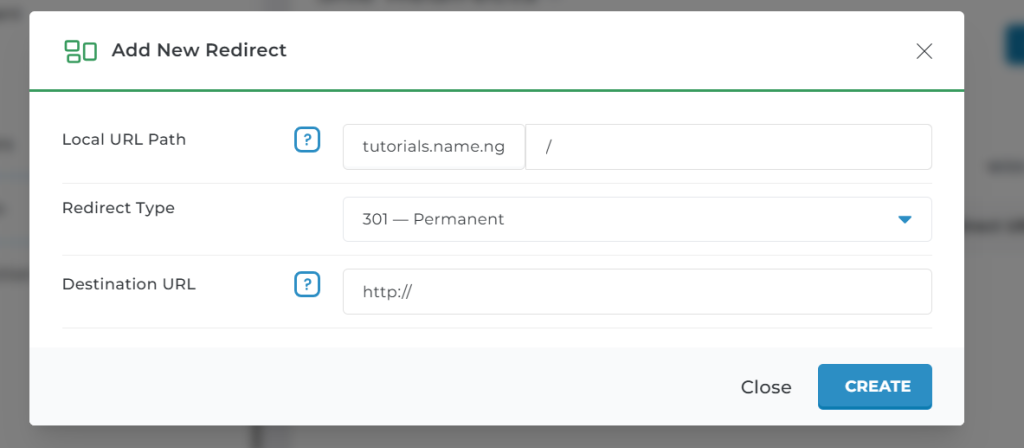
4️. Fill in the Redirect Details
You will be asked to provide:
Local URL Path This is the part of your website you want to redirect (example: /oldpage).
Destination URL The link where visitors should be redirected (example: https://yourdomain.com/newpage).
Redirection Type Choose from: 🔹301 (Permanent Redirect) – Best for SEO 🔹302 (Temporary Redirect) 🔹303 / 307 Redirects depending on your use case
Choose 301 if you have permanently moved the page/site.
5️. Click “Create”
Once you save it, the redirect becomes active immediately.
6️.Test Your Redirect
Visit the old link and make sure it goes to the new destination successfully.
You are Done!
Using the Site Redirection tool helps you: ✔ Maintain SEO performance ✔ Prevent 404 errors ✔ Guide visitors to the correct pages ✔ Manage website changes smoothly