The Autoresponders feature in the Direct Admin Panel that automatically sends a pre-written reply to anyone who emails a specific address. Autoresponders have become one of the most important tools in any businesses, as they are ideal for keeping customers informed without having to manually reply to each individual email, saving you an enormous amount of time. They are most commonly used to set up “Out of Office” messages, vacation replies, or standard customer service acknowledgments when you are unavailable. You can set them up in the Email section of your cPanel dashboard using the Autoresponders menu. When creating one, you can configure several key settings, depending on how you want the system to run.
Here are the step-by-step instructions:
1. Access Direct Admin: Open your web browser and log into your Direct Admin account (usually via https://yourdomain.com:2222).
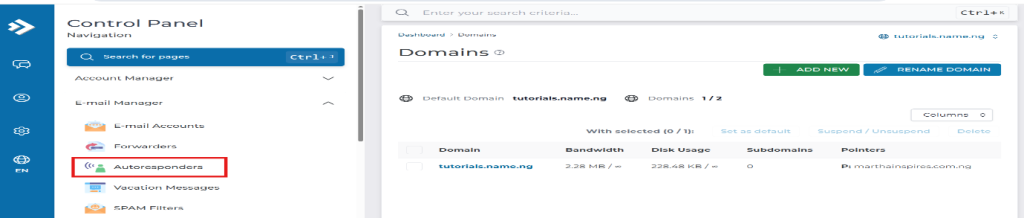
2. Locate Autoresponders: From the dashboard, navigate to the Email Manager section and click on Autoresponders.
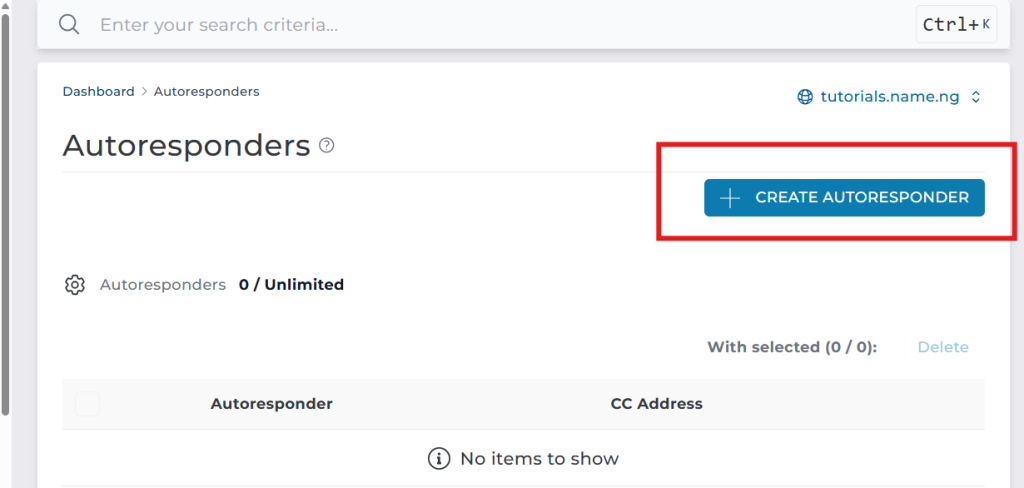
3. Create New: Click the Create Autoresponder (or Create New Autoresponder) button.
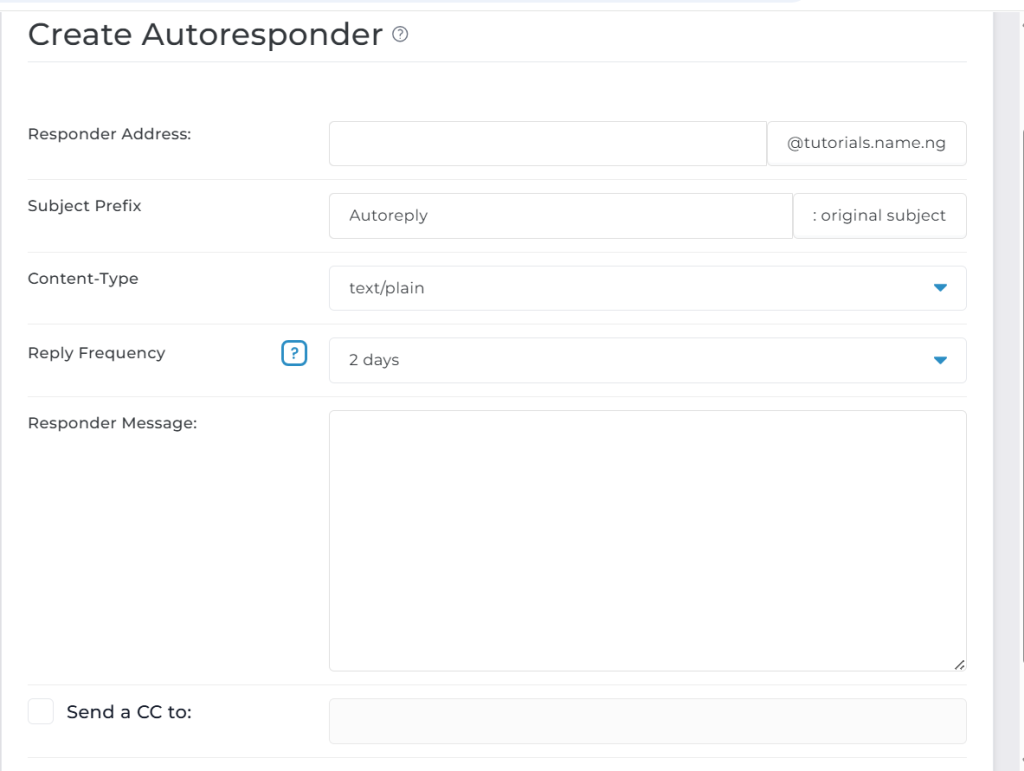
4. Fill in the Details: Responder Address: Enter the email address you want to attach the autoresponder to.
Subject Prefix: Set a prefix for the subject line (e.g., “Out of Office -“).
Content-Type: Choose whether your message will be plain text or HTML.
Reply Frequency: Configure how often the autoresponder should reply to the same person (e.g., 1 hour, or 12 hours to avoid spamming the same recipient).
Responder Message: Type your automated reply message in this box.
Send a CC to: (Optional) Enter an email address if you want to receive copies of the auto-replies. Save:
5. Click the Save button to activate the autoresponder.