Forgetting your WordPress admin password can be frustrating, especially when you need urgent access to your website. Fortunately, DirectAdmin provides several easy ways to reset your password without logging into WordPress.
This guide walks you through the most effective methods.
When Do You Need This?
You may need to reset your password if:
You forgot your WordPress admin login details
Your account has been compromised
The password reset email is not working
Method 1: Reset Password via phpMyAdmin (Most Reliable)
This is the most commonly used method.
Steps:
Log in to your DirectAdmin Control Panel
Navigate to: Account Manager → Databases
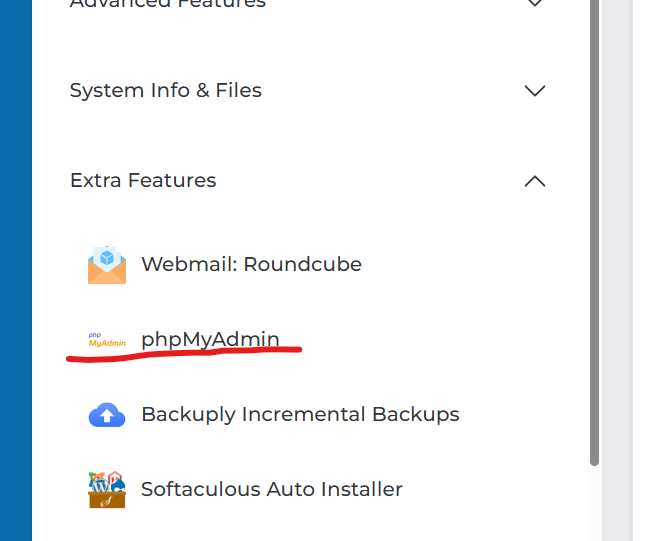
Click on: phpMyAdmin next to your database
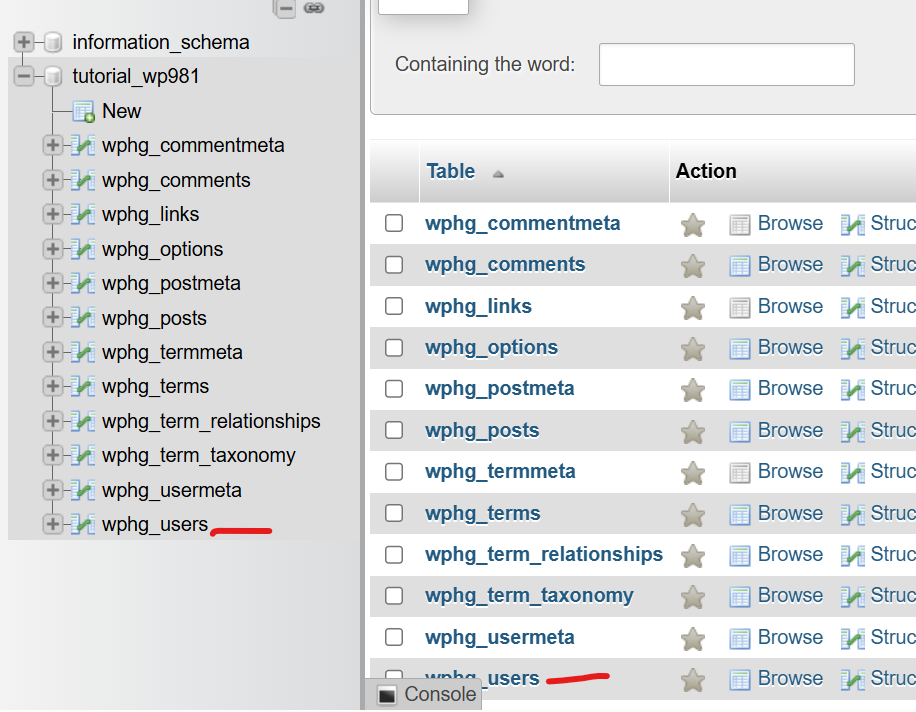
4. Select your WordPress database from the left sidebar
5. Open the table:
wp_users
(Note: the prefix “wp_” may vary, e.g., wp123_users)
6. Locate your admin username and click Edit
7. Find the field:
user_pass
8. Change the function to:
MD5
9. Enter your new password in the value field
10. Click Go / Save
You can now log in using your new password.
Method 2: Reset via WordPress Login Page
If your email is working:
Go to your login page:
yourdomain.com/wp-admin
Click: Lost your password?
Enter your username or email
Check your email and follow the reset link
If you don’t receive the email:
Check spam/junk folder
Ensure your server email is properly configured
Method 3: Reset via File Manager (functions.php Method)
Useful if you can access files but not the database.
IMPORTANT: Remove the code immediately after logging in
Method 4: Reset Using WP-CLI (Advanced Users)
If you have SSH access:
Connect via SSH
Navigate to your WordPress directory:
cd domains/yourdomain.com/public_html
Run:
wp user update admin –user_pass=NewPassword123
Common Issues & Fixes
Database not found
Check wp-config.php for correct database name
Password not working after reset
Clear browser cache
Ensure MD5 was selected in phpMyAdmin
Don’t know admin username
In wp_users table:
Look for the user with:
user_login = admin
or check user_email
Security Tips
Always use a strong password (mix of letters, numbers, symbols)
Avoid using “admin” as your username
Enable Two-Factor Authentication (2FA)
Keep WordPress, themes, and plugins updated
Resetting your WordPress admin password in DirectAdmin is simple once you know where to look. The phpMyAdmin method is the most reliable, while other methods offer flexibility depending on your access level.