Forgetting your DirectAdmin password can be frustrating, especially when you urgently need to manage your website, emails, or databases. Fortunately, resetting your password is simple if you follow the correct steps.
In this guide, I will walk you through two different methods to reset your password depending on your access level.
There are four ways to update your DirectAdmin password:
From your Client Area
Directly inside your DirectAdmin dashboard
Reset Password via Admin (For Resellers & Admins)
Reset Password via SSH (Advanced Method – Server Access Required)
Method 1: Reset Password from the Client area Page
To update your DirectAdmin password from your client area, follow these steps:
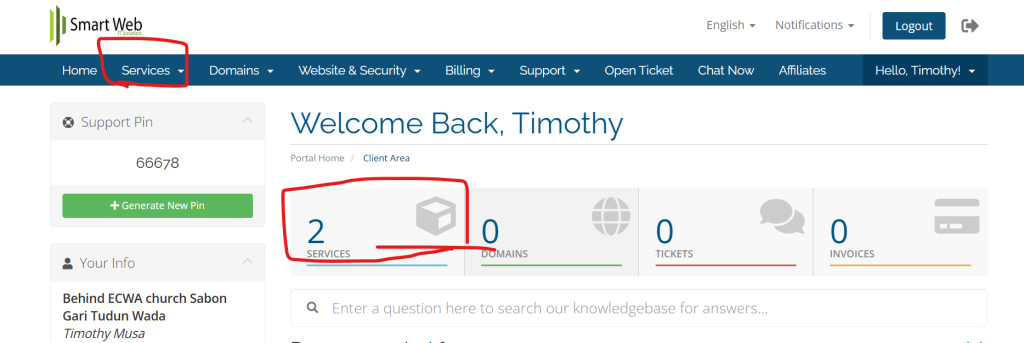
Log in to your Client Area.
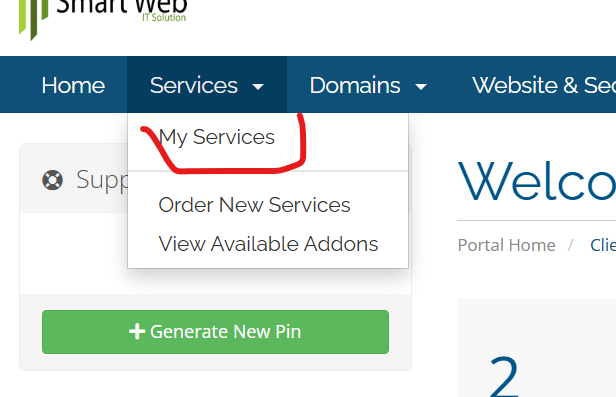
Navigate to Services.
3. Click on My Services.
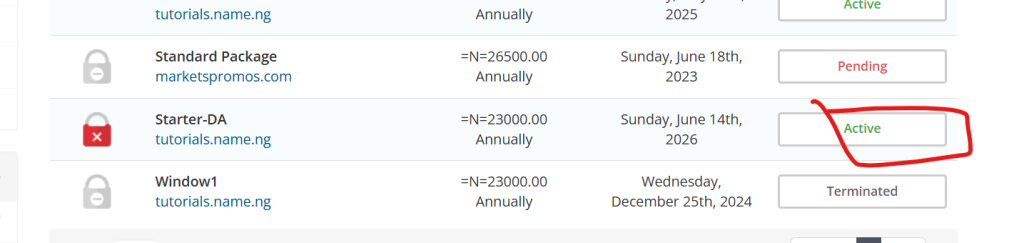
4. Select the hosting account you want to manage.
5. Click on the Active service (your domain name)
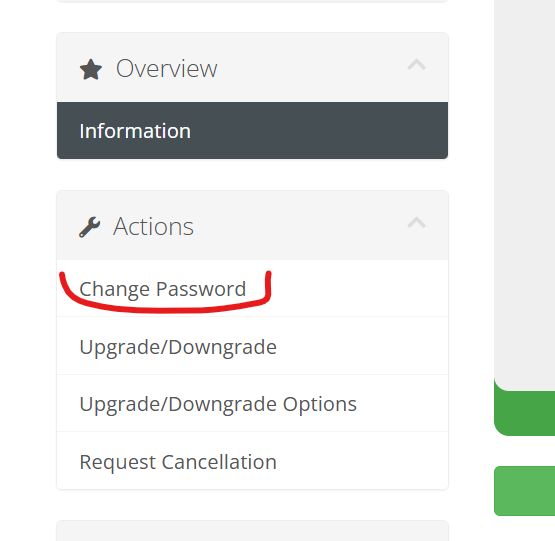
6. On the next page, locate the Actions section.
7. Click on Change Password.
8. Enter your new password.
9. Click Submit.
That’s it! You have successfully updated your DirectAdmin password from your client area.
Method 2: Change Password from DirectAdmin Dashboard
If you already know your current password and simply want to update it for security reasons, you can change it directly inside DirectAdmin.
Follow these steps:
Log in to your DirectAdmin account using your current credentials.
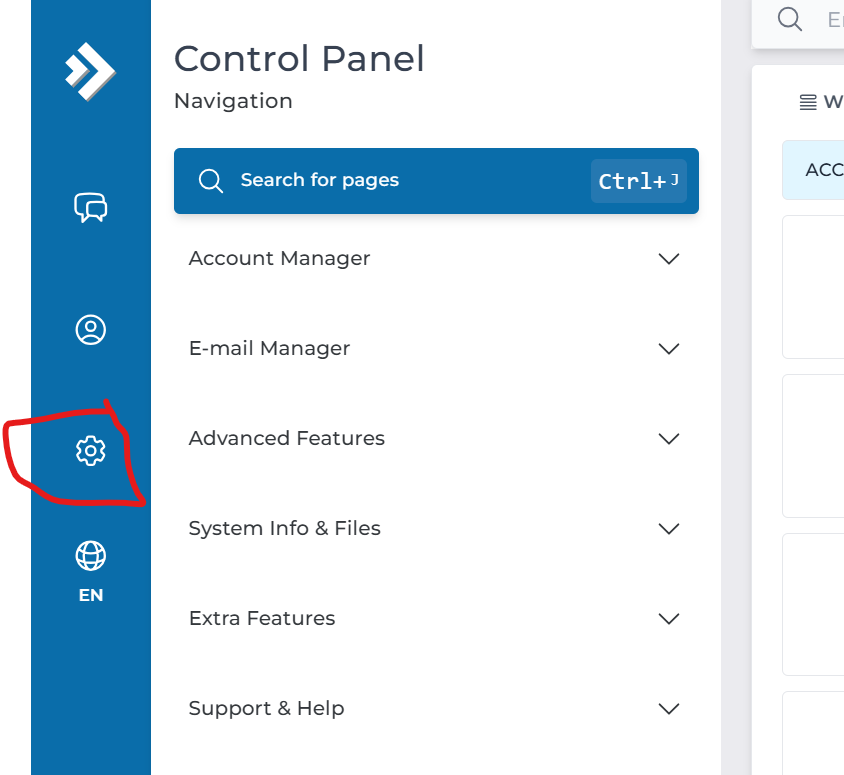
Go to Settings.
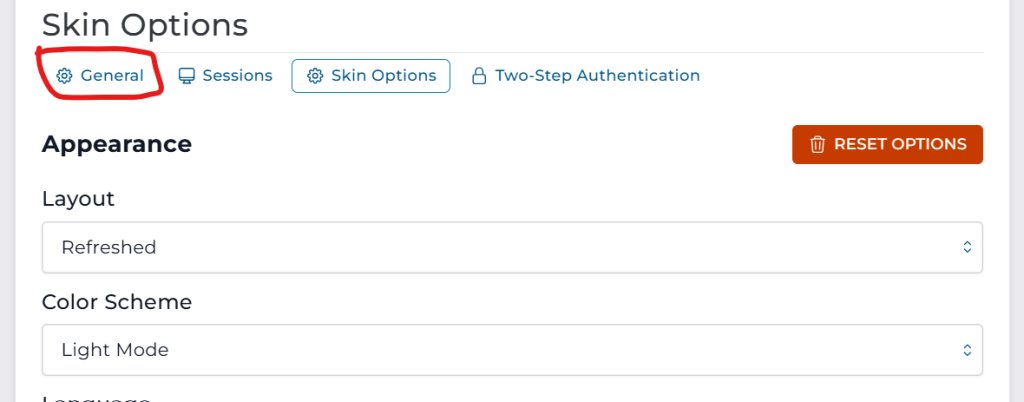
3. Click on General.
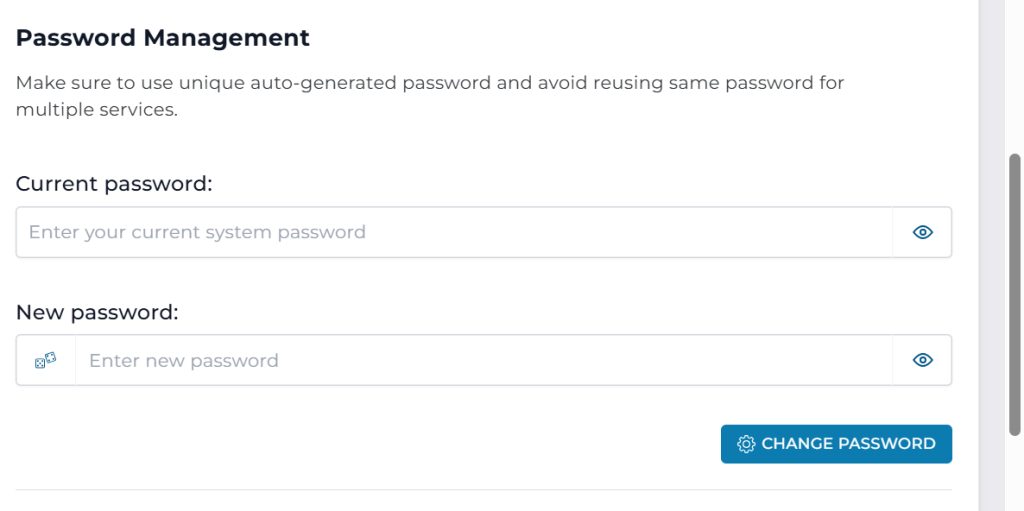
4. Scroll down to Password Management.
5. Enter your current password.
6. Enter your new password.
7. Confirm the new password.
8. Click Submit Changes.
Your password has now been successfully updated.
Security Tip: Always use a strong password that includes uppercase letters, lowercase letters, numbers, and special characters to protect your hosting account.