Sometimes you may need to rename an email address due to rebranding, staff changes, spelling errors, or role updates (for example, changing info@domain.com to support@domain.com).
This guide explains the correct and safe way to do it.
Enter your username and password to access your dashboard.
Goto Email Accounts
Select the email yu want to modify
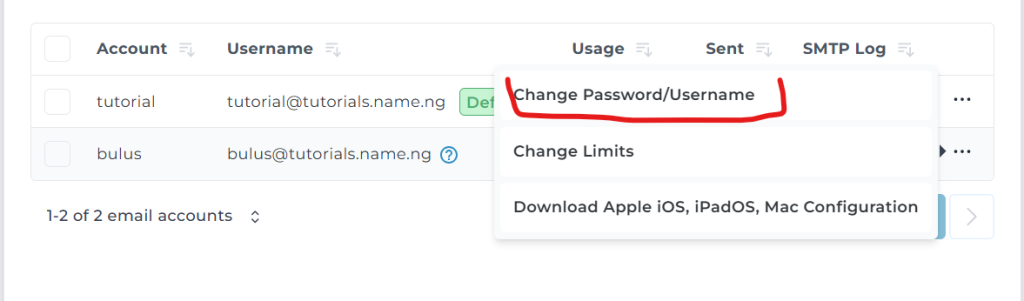
Click on edit
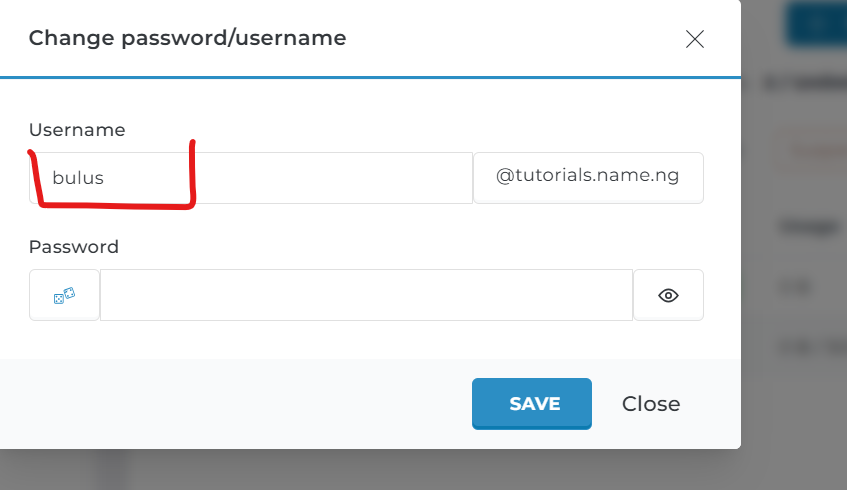
Select the first option change password/username
5. Modify to your desired username and enter the current password of the email then save changes.
Alternatively, you can creating a new email address and transferring the content. The steps below will guide you on this.
Step 2: Create the New Email Address
Click on Email Manager
Select Email Accounts
Click Create Account
Enter the new email address name (for example: support)
Set a strong password
Assign the required email quota
Click Create
Your new email address is now created.
Step 3: Transfer Emails from Old Account (Optional but Recommended)
If you need to keep existing emails:
Option A: Using Webmail
Login to Webmail for the old email
Download important emails
Login to the new email
Upload or move messages manually
Option B: Using Email Client (Recommended)
If you use Outlook, Thunderbird, or any email client:
Add both old and new email accounts
Drag and drop emails from the old account to the new one
Wait for synchronization to complete
This method is easier and more efficient.
Step 4: Set Email Forwarder (Optional)
To avoid missing emails sent to the old address:
Go to Email Manager
Click Forwarders
Create a forwarder from the old email address to the new one
This ensures emails sent to the old address are redirected.
Step 5: Delete the Old Email Account
Once you confirm everything is transferred:
Go back to Email Accounts
Locate the old email address
Click Delete
Confirm deletion
Your email address has now been successfully renamed.
Best Practices
✔ Always back up important emails before deleting an account ✔ Set up forwarding temporarily to prevent email loss ✔ Inform clients or contacts about the new email address ✔ Update email address on your website and business profiles
Common Mistakes to Avoid
Deleting the old email before transferring messages