
When managing websites on DirectAdmin, you may encounter limitations when uploading large files (e.g., images, backups, or application packages). These limits are controlled by your server’s PHP configuration. This guide explains how to increase the upload file size step-by-step.
Understanding Upload Limits in DirectAdmin
The upload size is mainly controlled by three PHP settings:
upload_max_filesize → Maximum size of a single uploaded file
post_max_size → Maximum size of all data in a POST request
memory_limit → Maximum memory a script can use
Important:
post_max_size must be greater than or equal to upload_max_filesize.
Method 1: Using Select PHP Version (Recommended)
This is the easiest method if your hosting uses PHP Selector.
Steps:
Log in to your DirectAdmin control panel
Navigate to:
👉 Select PHP VersionClick on:
👉 OptionsLocate and modify the following:
upload_max_filesize (e.g., 64M, 128M, 256M)
post_max_size (slightly higher than upload size)
memory_limit (e.g., 256M or higher)
Click Save
Method 2: Using .user.ini File
If PHP Selector is not available:
Steps:
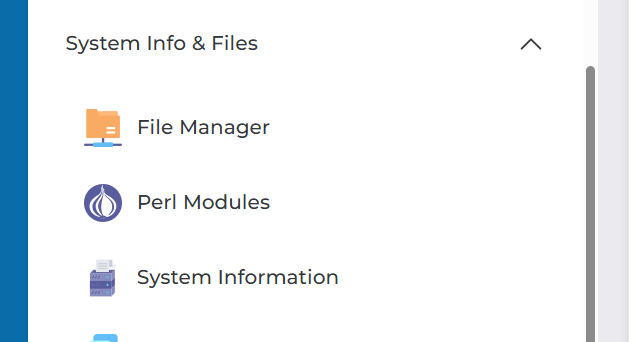
Go to File Manager
2. Open your domain’s root directory:
/domains/yourdomain.com/public_html/
3. Locate or create a file named:
.user.ini
4. Add or update:
upload_max_filesize = 128M
post_max_size = 128M
memory_limit = 512M
max_execution_time = 300
max_input_time = 300
5. Save the file
Changes may take a few minutes to apply.
Method 3: Using .htaccess (For Apache Servers)
If your server uses Apache:
Open .htaccess in your public_html folder
Add:
php_value upload_max_filesize 128M
php_value post_max_size 128M
php_value memory_limit 256M
php_value max_execution_time 300
php_value max_input_time 300
Save changes
Method 4: Editing php.ini (Advanced / VPS & Dedicated Servers)
If you have root access:
Locate your php.ini file
Update:
upload_max_filesize = 128M
post_max_size = 128M
memory_limit = 256M
Restart web server:
Apache:
systemctl restart httpd
Nginx:
systemctl restart nginx
Common Issues & Fixes
Changes not reflecting
Clear browser cache
Restart PHP (if VPS)
Wait a few minutes for .user.ini
Upload still fails
Check:
post_max_size is not smaller than upload_max_filesize
Server firewall or ModSecurity rules
Disk space availability
Hosting limitations
Some shared hosting providers restrict:
Maximum upload size
PHP configuration changes
In this case, contact your hosting provider to increase limits.
Recommended Settings
For most applications:
upload_max_filesize = 128M
post_max_size = 128M
memory_limit = 256M
max_execution_time = 300
For large apps (e.g., backups, Next.js builds):
upload_max_filesize = 512M
post_max_size = 512M
memory_limit = 512M
Increasing upload file size in DirectAdmin is straightforward once you understand where PHP settings are controlled. The Select PHP Version method is the easiest, while .user.ini and .htaccess provide flexible alternatives.