A Certificate Signing Request (CSR) is required when you want to install an SSL certificate for your domain. It contains your domain details and a public key that Certificate Authorities (CAs) use to issue your SSL certificate.
This guide shows you how to generate a CSR easily in DirectAdmin.
What is a CSR?
A CSR includes important information such as:
Domain name (Common Name)
Company or organization name
Location (City, State, Country)
Email address
Public key
Once generated, you submit the CSR to an SSL provider (e.g., Let’s Encrypt, Sectigo, etc.) to obtain your SSL certificate.
Step-by-Step: Generate CSR in DirectAdmin
1. Log in to DirectAdmin
Access your control panel:
http://yourdomain.com:2222
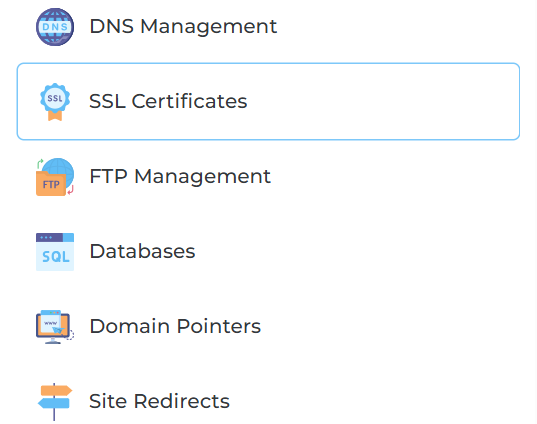
2. Navigate to SSL Certificates
Go to: Account Manager → SSL Certificates
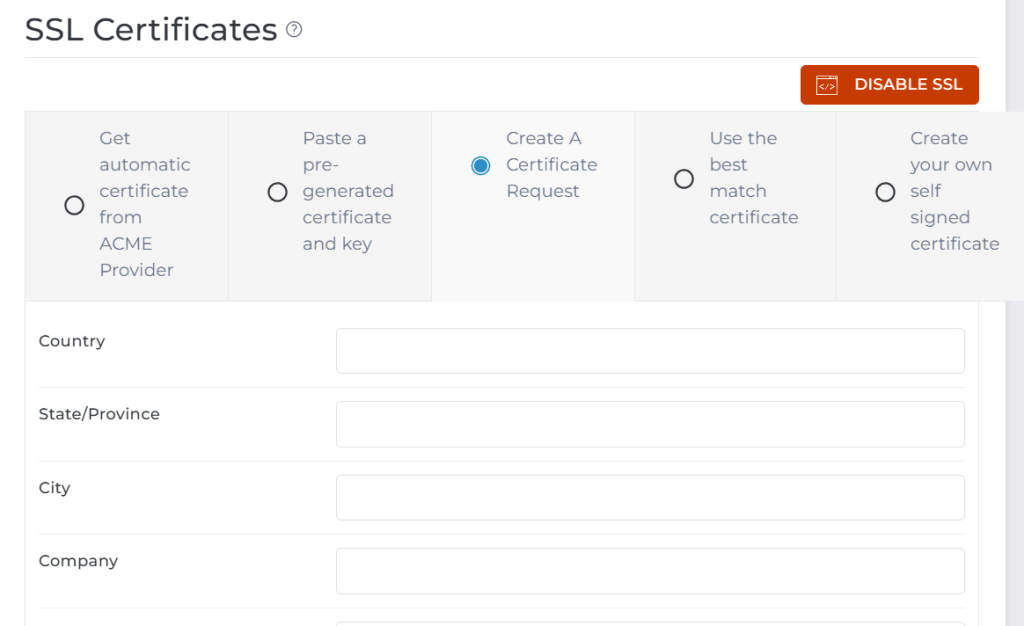
3. Select “Create A Certificate Request”
Choose: Create A Certificate Request
4. Fill in CSR Details
You’ll be required to enter the following:
Common Name (Domain):
yourdomain.com
For wildcard SSL:
*.yourdomain.com
Key Size: Recommended: 2048 or 4096
Country Code: Example: NG (Nigeria)
State/Province: Your state (e.g., Lagos)
City: Your city
Company Name: Your business or personal name
Company Division: Optional (e.g., IT Department)
Email Address: Your valid email
Passphrase: Optional (can be left blank)
5. Click “Save”
After submitting:
DirectAdmin will generate:
CSR Code
Private Key
Important: Save Your Private Key
The Private Key is critical
Do NOT share it with anyone
You’ll need it when installing your SSL certificate
What Happens Next?
Copy the CSR code
Submit it to your SSL provider
Receive your SSL certificate files:
Certificate (CRT)
CA Bundle (if provided)
Installing the SSL Certificate
Once you receive your SSL certificate:
Go back to: SSL Certificates
Select: Paste a pre-generated certificate and key
Paste:
Private Key
Certificate (CRT)
CA Bundle
Click Save
Common Mistakes to Avoid
Wrong domain in CSR
Ensure the Common Name matches your domain exactly
Losing Private Key
Without it, SSL installation will fail
Using non-wildcard CSR for subdomains
Use:
*.yourdomain.com
if you want to cover all subdomains
Best Practices
Always use 2048-bit or higher key size
Generate a new CSR for each SSL request
Keep your private key secure
Use wildcard SSL for multiple subdomains
Generating a CSR in DirectAdmin is a simple but crucial step in securing your website with SSL. With the correct details and proper handling of your private key, you can quickly obtain and install your SSL certificate.