Managing your website files becomes faster and easier when you use an FTP account. Here is how to create one inside your DirectAdmin panel
1️ Login to Your DirectAdmin
Start by logging in to your hosting control panel using your username and password.
2️ Go to “Account Manager”
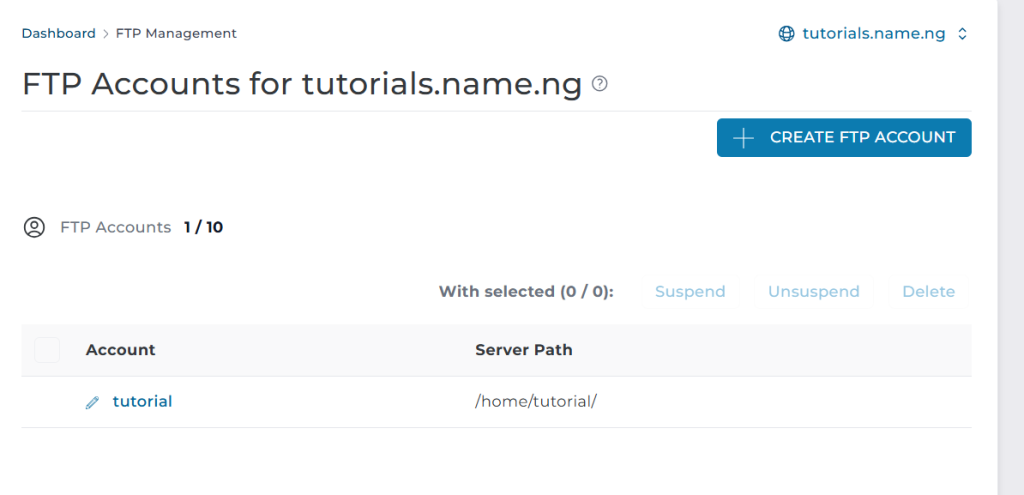
From the main dashboard, click Account Manager and then select FTP Management.
3️ Click “Create FTP Account”
You’ll see a button labeled Create FTP Account — click on it to begin.
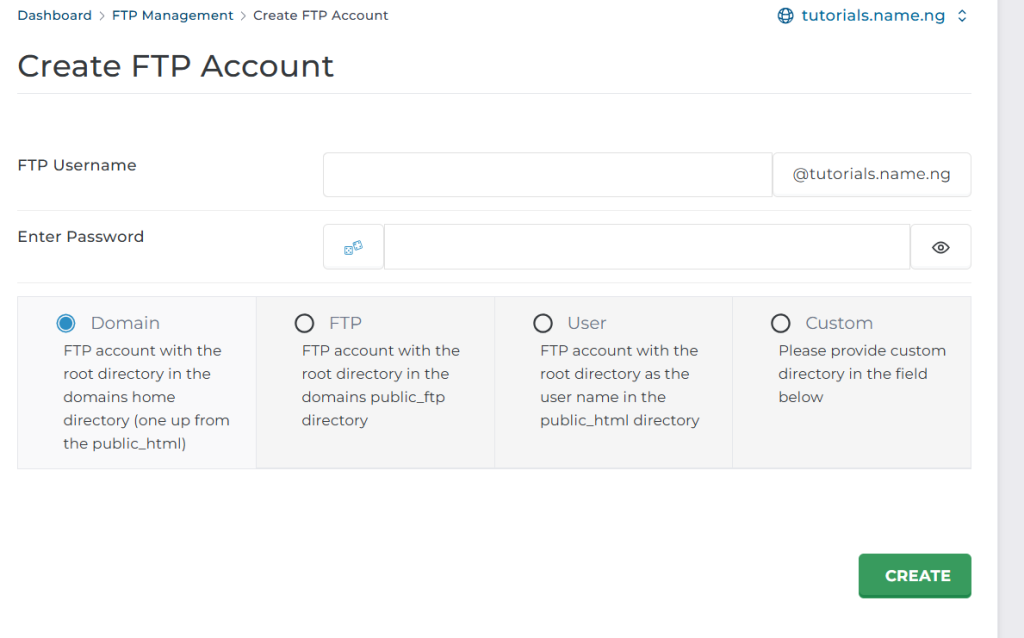
4️ Fill in the Account Details
Enter the following:
FTP Username
Password
Directory Access (choose which folder the user can access: Domain Directory FTP User Directory Custom Directory) Choose what best fits your needs.
5️Set the Permissions
Make sure the user has the appropriate access level. For full access, choose the main domain folder. For limited access (e.g., for developers), select a specific directory.
6️ Click “Create”
Once done, click Create and your FTP account will be ready immediately.
7 Connect via FTP Client
Use an FTP client like:
FileZilla
WinSCP
Cyberduck
Enter your:
FTP username
Password
Hostname (usually your domain name)
Port (default: 21)
You can now upload, delete, and manage website files easily.
You are All Set!
Creating an FTP account helps you: ✔ Manage files faster ✔ Share access with developers ✔ Keep your website organized