While automated server defenses like SpamAssassin and Greylisting catch the vast majority of junk mail, persistent or highly specific spam can still occasionally slip through. When a spammer targets your inbox with a predictable pattern, keyword, or sending address, setting up a custom email filter is the most effective way to block them permanently.
This guide will walk you through creating custom email filters in cPanel to catch spam before it ever disrupts your workflow.
Create a spam email filter
To create a spam filter, perform the following steps:
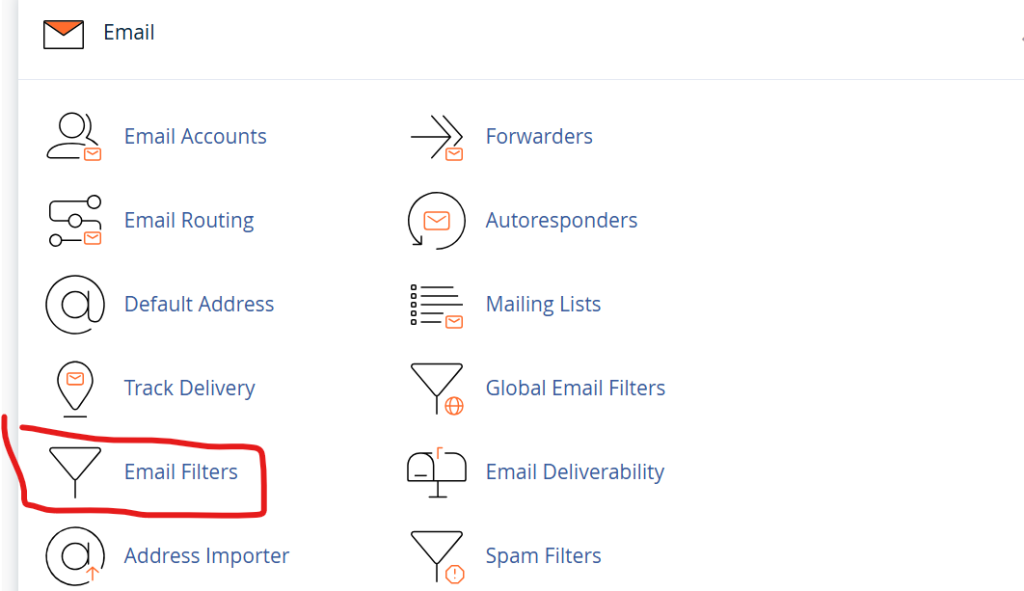
Navigate to cPanel’s Spam Filters interface (cPanel » Home » Email » Spam Filters).
2. Navigate to cPanel’s Global Email Filters interface (cPanel » Home » Email » Global Email Filters).
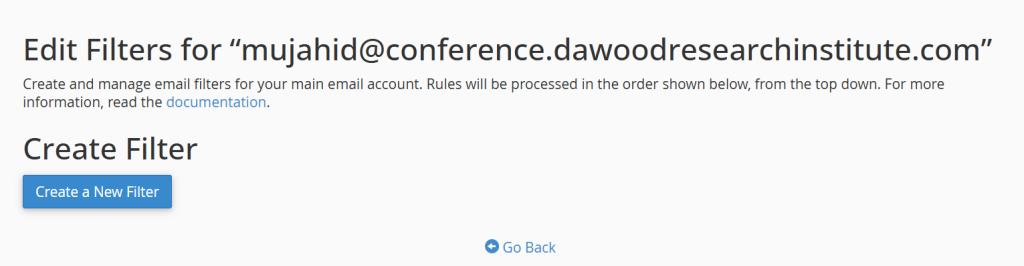
3. Click Create a New Filter.
4. Enter the name of your filter in the Filter Name text box.
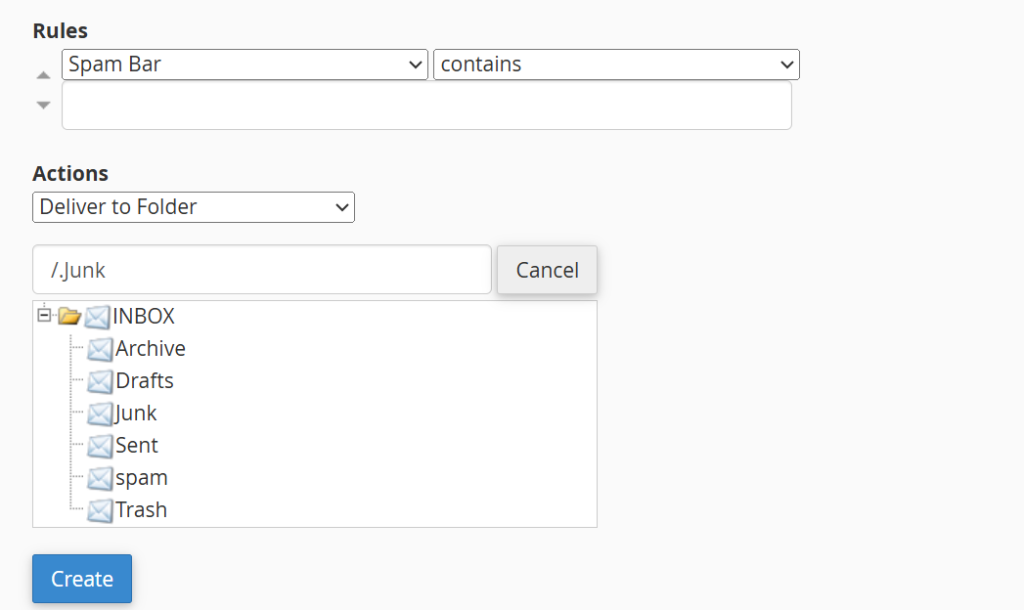
5. Select Spam Bar from the first menu in the Rules section.
6. Select contains from the second menu in the Rules section.
7. Enter the spam score in the text box. Represent the desired spam score with plus (+) characters
Select Deliver to folder from the menu in the Actions section.
Enter the name of the folder to which you wish to send your spam email.
Click Browse to see a list of your folders.
Click Create to create, save, and activate the spam filter.
Note;
The Discard Message action safely deletes incoming mail with zero tracking, meaning there is no way to recover it if a legitimate email accidentally triggers the filter. If you are filtering a broad keyword that might appear in a real client email, choose Deliver to Folder instead to avoid accidental data loss.