Keeping your email account secure is very important. If you suspect unauthorized access, or you simply want to improve security, changing your email password in DirectAdmin is quick and easy.
In this guide, you’ll learn how to update your email account password step by step.
Why You Should Change Your Email Password
You may need to change your email password if:
You forgot your current password
You suspect your email was compromised
You shared access temporarily
You want to improve security
Smartweb Nigeria Ltd we recommends a password update
Regular password updates help protect your website and communication.
Method 1: Change Email Password from DirectAdmin (User Level)
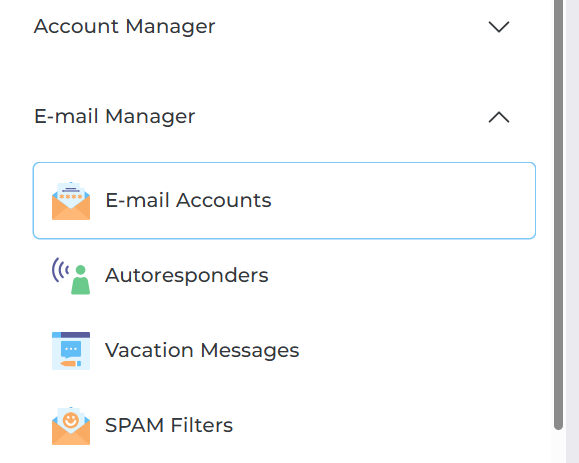
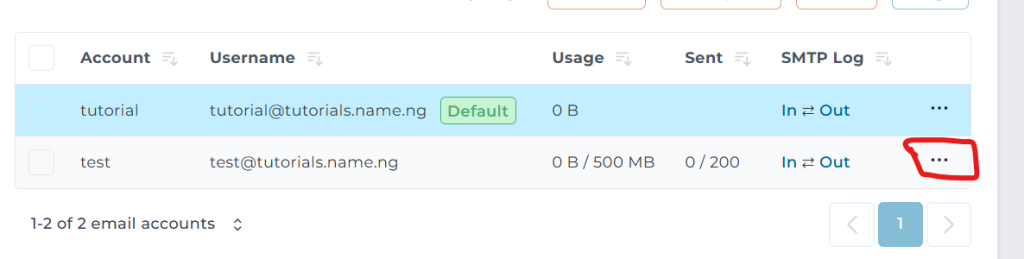
You will see a list of all email accounts under your domain.
Step 3: Select the Email Account
Locate the email address you want to update.
Click on Manage (or the edit icon next to the email address).
Step 4: Enter the New Password
Under the password section:
Enter the new password
Confirm the new password
You may also use the password generator to create a strong password.
Step 5: Save Changes
Click Save or Modify to apply the new password.
✅ Your email password has now been successfully updated.
Method 2: Change Email Password as Admin or Reseller
If you manage user accounts:
Log in as Admin or Reseller
Go to Account Manager
Click List Users
Select the user account
Navigate to Email Accounts
Edit the specific email address
Enter the new password
Save changes
Important After Changing Your Password
After updating your email password, remember to:
✔ Update password on mobile devices ✔ Update password in Outlook, Thunderbird, or other email clients ✔ Update SMTP settings in website applications ✔ Remove old saved passwords
If you don’t update connected devices, email may stop sending or receiving.
Tips for Creating a Strong Email Password
Use at least 12 characters
Include uppercase and lowercase letters
Add numbers and symbols
Avoid using your name or domain
Do not reuse old passwords
Example of a strong password: S3cur3Mail!2026
Troubleshooting Tips
If you cannot change the password:
Ensure you are logged into the correct DirectAdmin account
Check if your hosting plan allows email management