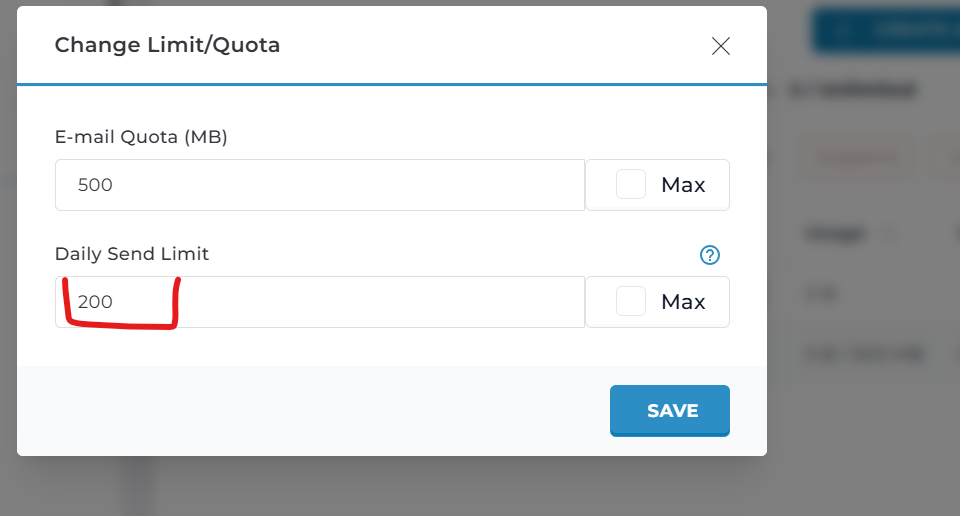
Email sending limits are important for preventing spam, protecting server reputation, and maintaining email deliverability. In DirectAdmin, you can control how many emails an account, domain, or user can send within a specific time frame.
This guide explains how to change the email sending limit step by step.
What is Email Sending Limit?
The email sending limit defines the maximum number of outgoing emails that can be sent per hour (or per day, depending on server configuration).
For example:
50 emails per hour
100 emails per hour
1000 emails per hour
If the limit is exceeded, further outgoing emails will be temporarily blocked.
Method 1: Change Email Sending Limit as Admin
Only Admin-level users can modify global email sending limits.
Step 1: Log in as Admin
Access your DirectAdmin using:
https://yourdomain.com:2222
Login with your admin credentials.
Step 2: Navigate to Admin Settings
From the Admin dashboard:
Step 3: Adjust the Global Email Sending Limit
Look for options like:
Enter your desired value (e.g., 500 emails per hour).
Step 4: Save Changes
Click Save to apply the new limit.
The new sending limit will now apply based on your configuration.
Method 2: Change Sending Limit for a Specific User (Admin Only)
If you want to adjust the limit for a particular hosting account:
Login as Admin
Go to Account Manager
Click List Users
Select the user account
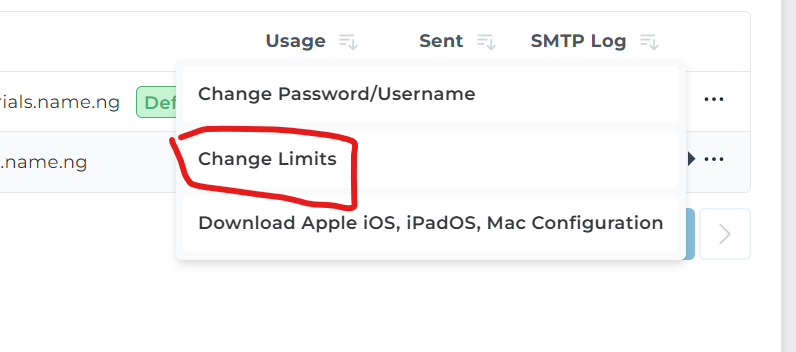
Look for Email Sending Limits
Enter the desired hourly limit
Save changes
Method 3: Change Domain-Level Limit (If Enabled)
Some servers allow domain-specific limits:
Login as User
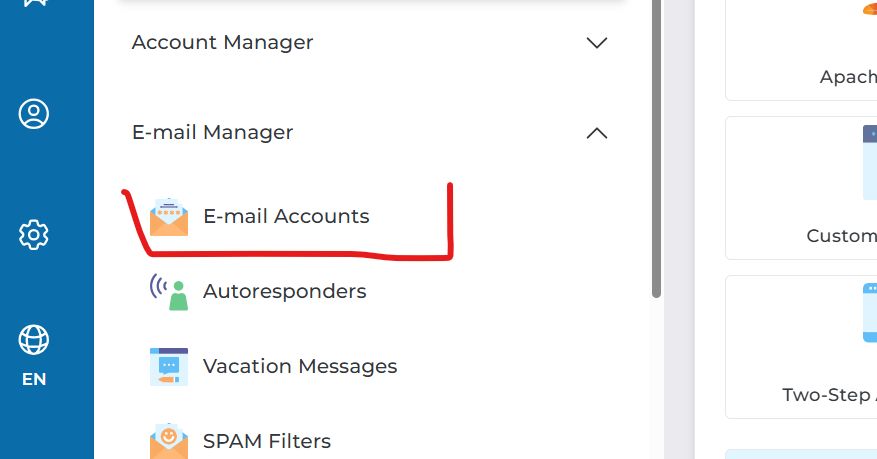
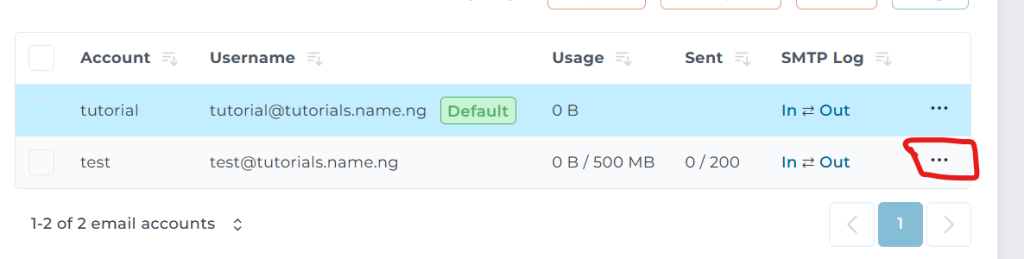
Go to Email Accounts
-