The Autoresponders feature in the cPanel that automatically sends a pre-written reply to anyone who emails a specific address. Autoresponders have become one of the most important tools in any businesses, as they are ideal for keeping customers informed without having to manually reply to each individual email, saving you an enormous amount of time. They are most commonly used to set up “Out of Office” messages, vacation replies, or standard customer service acknowledgments when you are unavailable. You can set them up in the Email section of your cPanel dashboard using the Autoresponders menu. When creating one, you can configure several key settings, depending on how you want the system to run.
Follow the Steps On How To Set It Up:
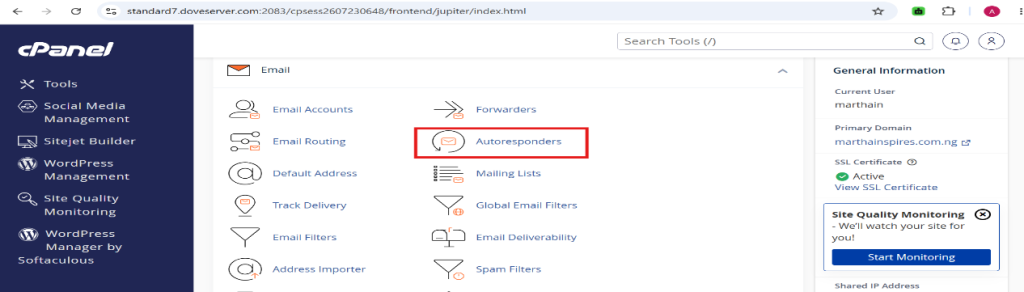
Log in to your cPanel interface and find the Email category, then click on Autoresponders
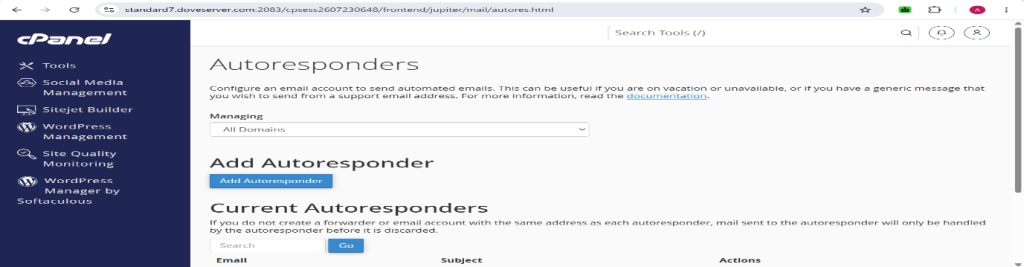
2. Add New: Click the Add Autoresponder button.
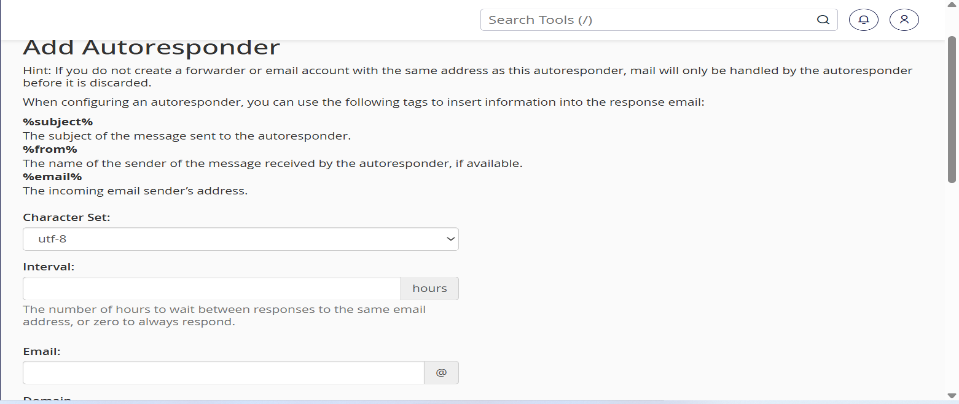
3. Configure the Settings:
Character Set: Leave this as utf-8
Interval: The number of hours to wait between sending responses to the same email address. Set to 0 to reply to every single email.
Email: Enter the specific email address you want to apply the autoresponder to, and select its domain from the drop-down.
From: Enter the name that will appear as the sender in the automated reply.
Subject: The subject line for your outgoing automated message
HTML: Check this box if your auto-reply message contains HTML tags (like bold text or links).
Start/Stop Time: Set when the autoresponder should start and stop (e.g., set for an upcoming vacation using “Custom”, or choose “Immediately” and “Never”)
4. Save: Click Create to activate your autoresponder