

Managing DNS records is an essential part of hosting and domain management. Whether you’re pointing your domain to a new server, connecting email services, or verifying ownership, DirectAdmin makes it easy to update DNS records.
This guide walks you through the step-by-step process.
What Are DNS Records?
DNS (Domain Name System) records control how your domain behaves on the internet. Common types include:
A Record → Points a domain to an IP address
CNAME Record → Points a domain to another domain
MX Record → Handles email routing
TXT Record → Used for verification (e.g., SSL, email security)
NS Record → Defines nameservers
Before You Begin
Make sure:
Your domain is using your server’s nameservers
DNS is managed inside DirectAdmin (not externally like Cloudflare)
Step-by-Step: Updating DNS Records in DirectAdmin
1. Log in to DirectAdmin
Access your control panel:
http://yourdomain.com:2222
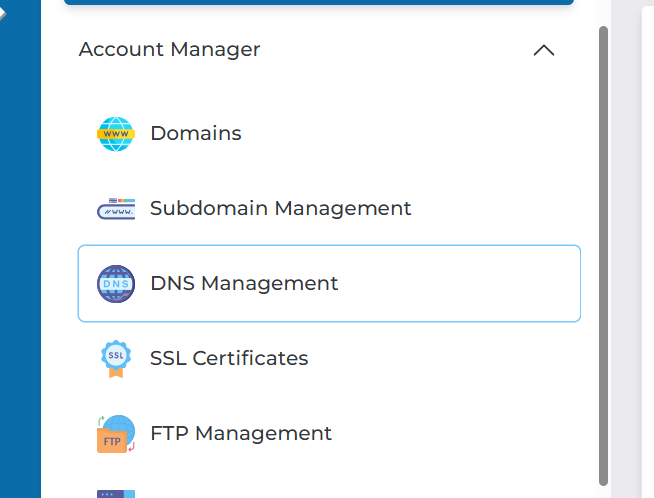
2. Navigate to DNS Management
Go to:
Account Manager → DNS Management
3. Select Your Domain
If you have multiple domains:
Choose the domain you want to manage
4. Edit Existing Records
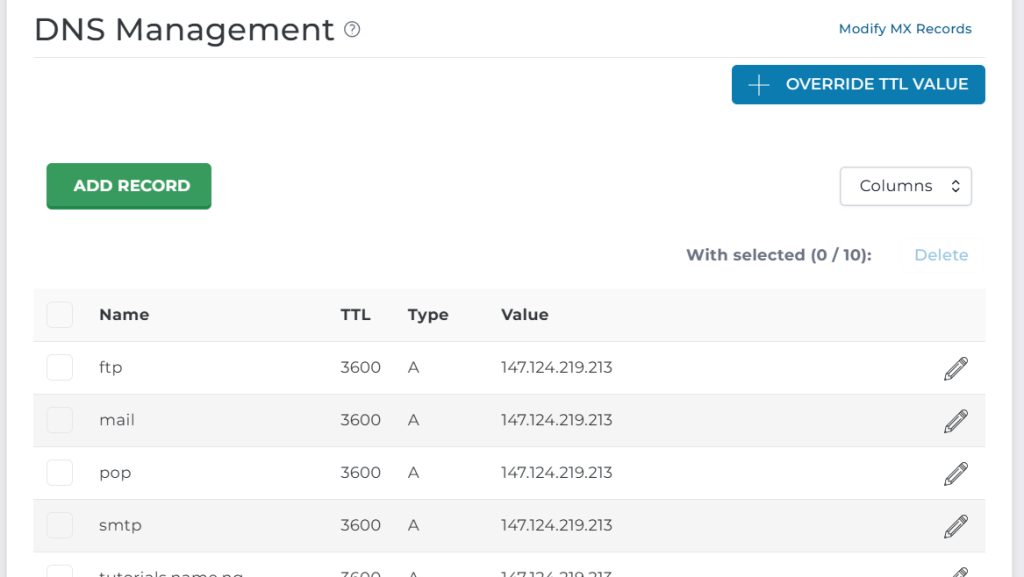
You will see a list of current DNS records.
To edit:
Click on the record you want to change
Update the values (IP, hostname, etc.)
Click Save
5. Add New DNS Records
Scroll down to “Add Record” section.
Fill in the required fields depending on record type:
Example 1: Add A Record
To point a subdomain to your server:
Record Type: A
Name: portal
Value: 123.456.78.90 (your server IP)
This creates:
portal.yourdomain.com → 123.456.78.90
Example 2: Add CNAME Record
To point a subdomain to another domain:
Record Type: CNAME
Name: www
Value: yourdomain.com.
Example 3: Add MX Record (Email Setup)
Record Type: MX
Value: mail.yourdomain.com
Priority: 10
Example 4: Add TXT Record (Verification)
Record Type: TXT
Name: @ or leave blank
Value: Provided verification string
6. Save Changes
Click:
Add / Save
DNS Propagation Time
After updating DNS:
Changes may take a few minutes to 24 hours
This is called DNS propagation
Common Issues & Fixes
Changes not reflecting
Clear browser cache
Wait for propagation
Use tools like:
ping yourdomain.com
nslookup yourdomain.com
Domain not resolving
Ensure nameservers are correctly set
Avoid conflicting records (e.g., A + CNAME for same name)
SSL not working after DNS update
Ensure domain points to correct server
Re-issue SSL certificate after DNS changes
Best Practices
Always double-check IP addresses before saving
Keep a backup of original DNS records
Use TTL (Time To Live) wisely (lower during migration)
Avoid deleting important records unless necessary
Updating DNS records in DirectAdmin is straightforward once you understand the basics. With proper configuration, you can easily connect your domain to hosting, email services, and external platforms.
Watch the Video here: